
 Table Of Contents
What’s new
In recent years, the landscape of social media intelligence has shifted, and geotagged social media data is becoming increasingly scarce. This makes it harder for OSINT and security teams to gather a complete picture of situations and conversations happening on the ground. To bridge this gap, we have extended Echosec’s Optimize feature into the Locate view.
Optimize uses AI to automatically suggest and insert relevant location-based keywords, such as business names, street names, and landmarks, into your real-time searches.
Why it matters
Security and intelligence practitioners often spend valuable time researching details about an area of interest, such as key landmarks, street names, and businesses. These are the types of details commonly mentioned in social media posts.
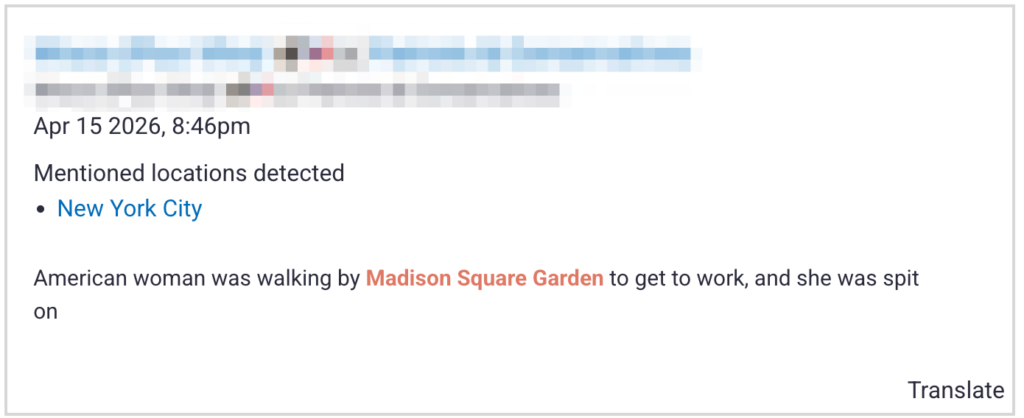
While these details are critical for social media intelligence, gathering them manually is resource-intensive.
Echosec Optimize alleviates this bottleneck by automatically scanning the area to generate and add location-based keywords to your searches. This allows you to pivot quickly from data collection to intelligence analysis, providing the situational awareness needed to identify and respond to threats before they escalate.
Optimize allows you to:
- Automate Foundational Research: Instantly convert time-consuming manual tasks into an automated process, allowing your team to focus on critical analysis rather than data collection.
- Uncover Hidden Intelligence: Capture ground-level conversations that broad geographic filters miss by automatically layering specific landmarks and business names into your searches.
- Scale to Unfamiliar Territories: Build a complete, hyperlocal intelligence picture in any region of interest, even when your team lacks pre-existing knowledge of the local landscape.
How it works
You can start getting more context-rich results in the Locate view in just a few steps:
- Enable Optimize: In the location search bar, click “Optimize” to enable the feature.
- Specify Location Types: Click the location pin icon to choose specific types, such as schools or landmarks, for suggestions.
- Generate Suggestions: Click Apply, then “Optimize now” to generate a list of suggestions within your geographic area.
- Select Locations: Use checkboxes to select desired locations or add them manually in the bottom bar.
- Search: Click Search to include the optimized locations in your real-time query.
Learn more about how Echosec uses AI to accelerate social media discovery: Echosec Assist: Flashpoint Unveils AI Assistant for Seamless Open-Source Intelligence Operations